1
Create your LuvoPay account
Select Create account, enter your details, and sign in to open your dashboard.
Complete this before continuing
LuvoPay.
Welcome to LuvoPay
Email
Password
Create account
Follow these seven steps in order. Each picture uses a red outline to show the exact area you need.
Select Create account, enter your details, and sign in to open your dashboard.
Select Verify identity and complete the document and liveness steps. Website connections unlock after approval.
Complete identity verification to unlock website connections.
Open Products, select Add product, then enter your product name, website URL, networks, and receiving wallets.
Copy the verification meta tag into your website's head, publish the change, then select Check verification.
After ownership is verified, copy the complete code exactly as shown. Do not edit its protected details.
Do not edit this code
Place the code before the closing body tag on the page where your payment button should appear, then publish your site.
Open your published page and select Pay with USDT. Confirm the checkout opens and shows your configured wallet and amount.
This recording shows the full journey your customers take: they select Pay with USDT on your site, choose a network, send the payment, and get confirmed — all inside the LuvoPay checkout.
Pro Plan
49 USDT
Powered by LuvoPay
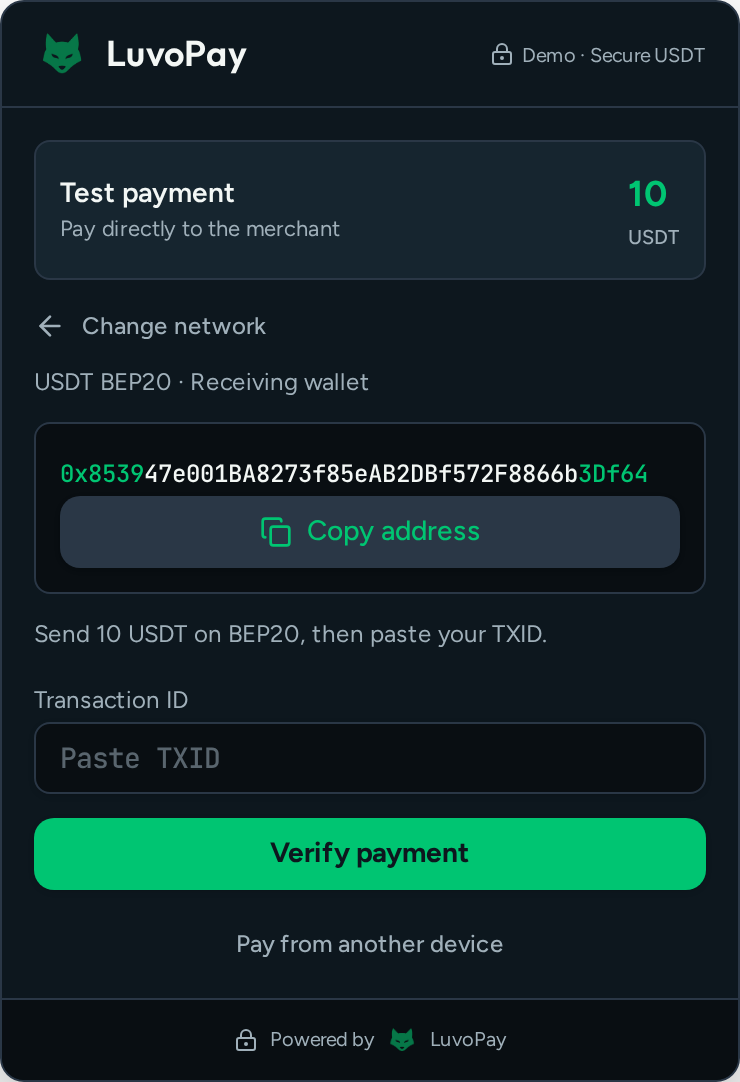
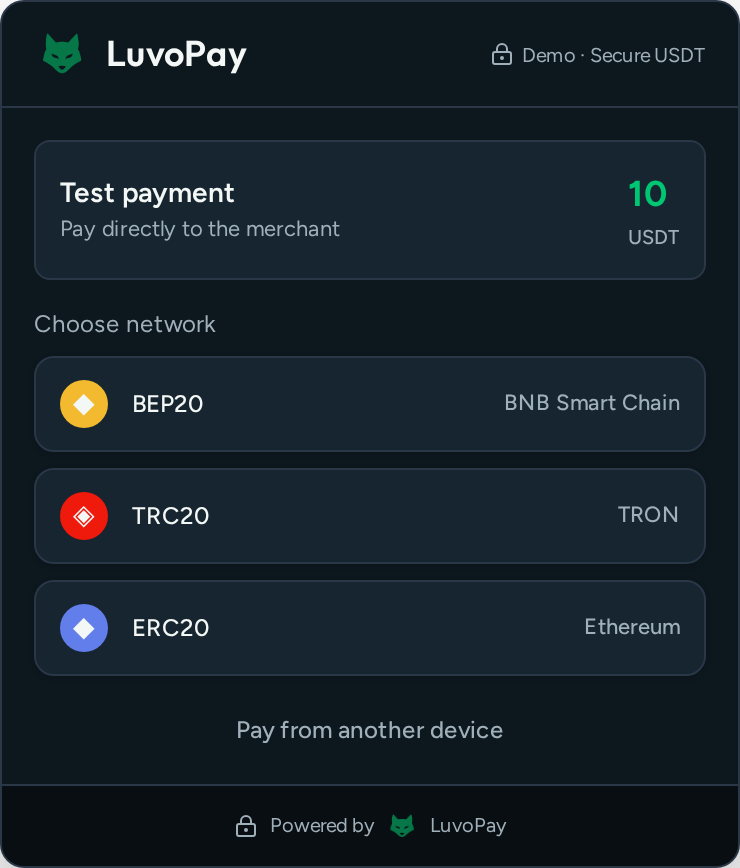
These are real screens from the LuvoPay checkout. Money goes straight from your customer's wallet to yours — LuvoPay only verifies the payment on-chain.
After selecting Pay with USDT on your website, the checkout opens with your product and price. The customer chooses BEP20, TRC20, or ERC20 — whichever network they hold USDT on.
The checkout shows your receiving wallet. The customer copies it, sends the exact amount from their own wallet, pastes the transaction ID, and selects Verify payment. LuvoPay confirms the transfer on-chain in seconds, and both you and your customer see the success screen. They can also select Pay from another device to finish on their phone.